How to Make a Background Transparent in Canva (Step-by-Step Guide!)
If you’ve ever stared at an image in Canva thinking, “Umm… how on earth do I get rid of this background?” — don’t worry. You are so not alone.
This post may contain affiliate links. This means I get a commission if you purchase through my links at no extra cost. Read the full disclosure here.
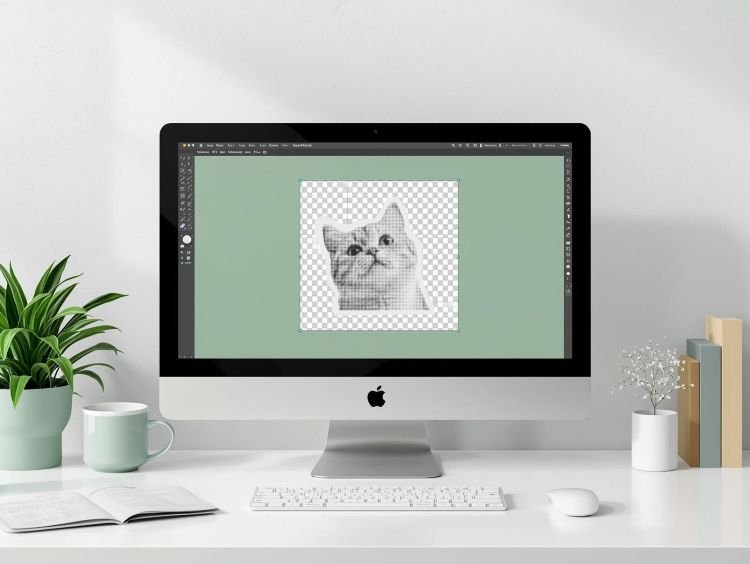
Whether you’re creating Canva templates, designing digital products, or trying to make your Pinterest graphics look extra crisp and professional, learning how to make a background transparent in Canva is a total game-changer. And the best part? It’s WAY easier than you think.
Knowing how to make a background transparent in Canva can significantly enhance your designs. This super handy skill enables greater versatility in your projects.
Let’s dive in.
Why You’ll Love Transparent Backgrounds
Before we jump into the steps, let me tell you… Once you get the hang of removing backgrounds in Canva, your design world is going to open up like a sparkly Pinterest mood board.
You’ll be able to:
- Place objects on any background
- Use this skill when learning how to make your own planner in Canva
- Make your own stickers
- Turn product mockups into magic
- Layer graphics like a total Canva pro
After learning how to make a background transparent in Canva, you can create designs that pop off the page.
How to Make a Background Transparent in Canva
Step 1: Choose Your Image
Head over to Canva and open any design you’re working on.
Upload the image you want to edit or select one from Canva’s image library.
Tip: Images with clear edges and contrast remove beautifully — but don’t stress, Canva’s tool is pretty smart!
Step 2: Click “BG Remover”
This second step involves selecting the image and how to make its background transparent in Canva.
Once your image is selected, a pop-up toolbar becomes visible.
You’ll see a magic little button called BG remover.

Click it and it instantly removes the background. As you can see, it has a little crown icon. This means that this is a Canva Pro feature.


Another way to remove the background, in the next step.
Step 3: Select “Edit Image”
Inside the editing options, you can also find the Background Remover.
It’s usually right at the top under “Magic Studio” — nice and easy.
You can click it, grab a sip of your latte, and let Canva work its A.I. magic for you.
In just a few seconds… poof!
In an instant, your background is gone as if it never existed.
Step 4: Clean Up with Erase & Restore (Optional)
If Canva didn’t get every pixel exactly right — no shade, it’s still an amazing platform — you can use the Erase and Restore brushes to fine-tune the edges.
To locate these tools, click the Remove Background icon once more.
- Use Erase to remove any leftover background.
- Use Restore to recover pieces that Canva accidentally deleted.
Zooming in helps a ton. (Trust me on this one!)
Step 5: Download with a Transparent Background
Downloading your design with a transparent background is the final step in how to make a background transparent in Canva.
This part is super important.
When you’re ready to download:
- Click Share
- Choose Download
- Select PNG format
- Check the box that says Transparent Background
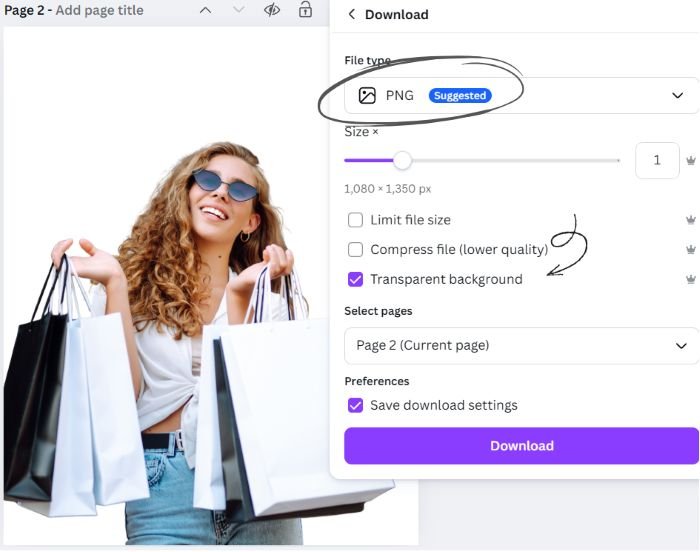
BOOM. You now have a clean, crisp, professional graphic ready to use anywhere.
Side note: Transparent background downloads are a Canva Pro feature. If you’re using the free version, you’ll still be able to remove backgrounds, but the transparency option won’t work without upgrading.
Creative Ways to Use Canva Transparent Backgrounds
Using your skills to create a transparent background in Canva can unlock doors for new opportunities in your creative journey.
Because once you learn it, it will be your go-to tool for EVERYTHING. 👀
Here are some fun ideas:
- Add isolated images to product mockups
- Create digital stickers for planners
- Design Canva logos with a transparent background
- Build layered Pinterest pins
- Make your digital products look polished and custom
- Craft seamless Instagram graphics
- Add transparent elements to Etsy or Payhip listings
Your designs will instantly feel more professional — and your customers will notice.
If you plan to use transparent PNGs on your website, it’s a good idea to optimize them before uploading. Large image files can slow down your pages, especially when you’re working with high-resolution graphics exported from Canva. To keep your site fast and user-friendly, consider using a reliable image compression tool. To learn more about how image compression works and why it matters, check out this helpful guide on mastering PNG optimization.
Troubleshooting: If Something Looks Weird…
It’s okay. We’ve all been there.
Here’s how to fix common issues:
❌ Jagged Edges
Try using the Restore brush with a soft edge and lower intensity.
❌ Blurry Edges
Download your design in high resolution (PNG) and scale your image up slightly.
❌ Shadow Won’t Remove
Use the Erase tool manually to remove the shadows Canva leaves behind.
❌ Background Remover missing?
Make sure you:
- Clicked on an image (not a graphic)
- Are you using Canva Pro for download transparency
You’re a Background Removing Pro Now!
See? So much easier than it looks, right?
Once you master Canva’s background remover, your design workflow gets smoother, faster, and way more fun.
It’s so awesome that you’re taking the time to learn new design tools. And it is indeed a powerful step toward leveling up your creative business.
Now that you’re equipped with knowledge on how to make a background transparent in Canva, what will you create?
Drop a comment, hit reply, or tag me on Instagram — I LOVE seeing what you create!
Want to Sell Designs or Templates Online?
Canva skills + the right platform = unstoppable.
If you’re ready to turn your creativity into income, check out my favorite selling platform: 👉 Payhip (where you can run your shop for free!)
Don’t forget to check out these 15 Black Friday sales ideas you can run on Payhip for free. They are ideal for selling Canva templates, stickers, planners, and other digital products.
Let’s keep building your digital empire, my friend. I know you can do this!
Get access to the Canva Creator Vault.
Join our mailing list and get instant access to the Canva Creator Vault — a growing library of FREE templates, cheatsheets, font pairings, planners, and more!