Canva Tutorial: How to Make Your Own Planner from Scratch (In 8 Simple Steps)
Ready to learn how to make your own planner pages from scratch—ones you can print, sell, or add to your own planner collection? Today, we’re diving into a simple, beginner-friendly Canva tutorial inspired by the same method thousands of Etsy sellers use to create passive-income printables.

This post may contain affiliate links. This means I get a commission if you purchase through my links at no extra cost. Read the full disclosure here.
In this guide, I’ll show you how to make your own planner from scratch in Canva. Create, personalize, and print your planner in just a few easy steps.
By the end of this guide, you’ll know exactly how to create your own professional, sellable, and adorably aesthetic planner pages—without spending a cent. Yes, Canva’s free tools are all you need.
Let’s get designing!
Why Create Planners in Canva? (A Quick Pep Talk)
If you’ve ever dreamed of waking up to “You made a sale!” emails while sipping your morning coffee… planners are a fantastic place to start.
Once you understand how to make your own planner, you can easily create daily, weekly, or even full planner bundles.
What if you could sell:
- Daily planners
- Weekly and monthly planners
- Social media content calendars
- Trackers of all kinds
…many of these planners can sit in your shop for over a year and still consistently get sales.
That’s the power of simple, evergreen digital products, my friend.
So yes—you can absolutely turn your cute planner page into a small passive-income machine.
✨ If you want to turn your creative passion into profit, my Etsy Shop Starter Vault shows you how.
Follow these steps to learn how to make your own planner that is both functional and stylish.
Let’s get started!
Step 1: Decide What Kind of Planner Page You Want to Create
If you’re learning how to make your own planner for the first time, Canva makes the process simple, fun, and beginner-friendly.
Before we open Canva, let’s do a little planning about your planner. This one step will save you a significant amount of time later.
To get started with how to make your own planner, think about the purpose of your planner.
- Am I making a daily, weekly, or monthly planner?
- What sections do I want?
- Gratitude
- Schedule
- To-Do List
- Priorities
- Meals
- Notes
- Water tracker
- Mood check
- How do I want the layout to feel—cute, minimal, elegant, playful?
✨ Pro tip :
Grab a piece of paper and sketch your layout before you start designing. Your future self will thank you.
Step 2: Set Up Your Canva File
Now it’s Canva time!
- Click Create a Design → Custom Size
- Choose US Letter (8.5″ × 11″) or A4
- Open your blank page
- Go to “File” > “Settings” and turn on:
- Rulers
- Guides
- Margins
Set half-inch margins around your page for a clean print area.
If you’re doing a two-column layout, add a center guide.
Now your page is starting to look clean, structured, and professional.
Step 3: Add Your Planner Header
Every planner needs a cute title moment.
Try headings like:
- “My Productive Day”
- “Daily Planner”
- “Let’s Make Magic”
- “Today’s Focus”
After adding your heading:
- Adjust the font
- Choose a color that’s cute and easy on the eyes—readability first!
- Add a little decorative icon (heart, star, sparkle—yes please!)
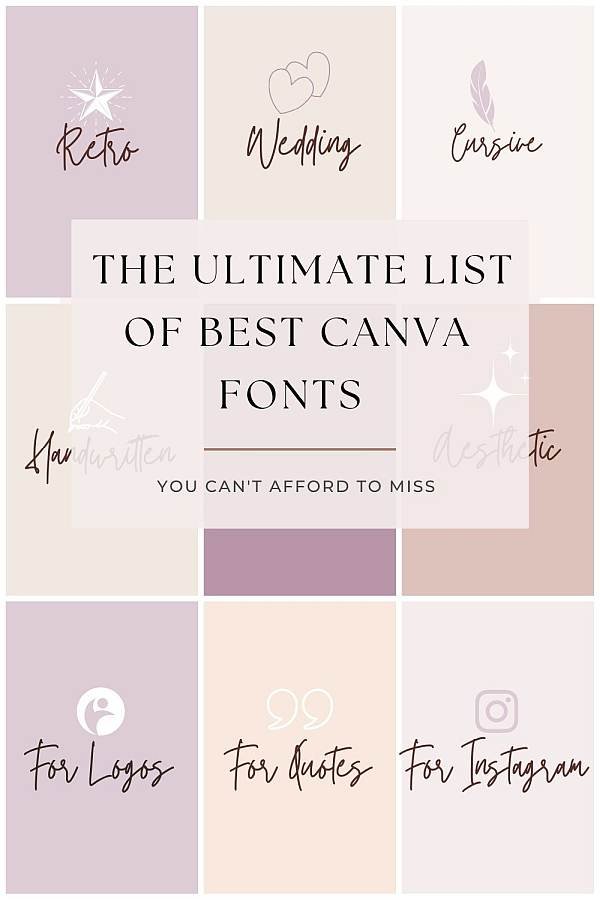
Check out this post with Canva font pairing ideas.
Then add a space for the date:
Now that you have a title, let’s dive deeper into how to make your own planner section by section.
- Insert a line from Elements → Lines
- Place it next to a small “Date:” label
This gives your planner instant structure and charm.

Step 4: Build Your First Section — Gratitude
Let’s kick things off with something heart-warming: a Gratitude box.
- Type “Gratitude” as the section label
- Add a rectangle from Elements
- Optionally adjust transparency for a softer look
- Add a little heart doodle because… why not? 🩷
- Select everything and click Group

Grouping keeps your section tidy when you move things around later.
Step 5: Create Your To-Do List and Schedule Sections
For your schedule:
- Drag a simple thin line
- Duplicate it (Ctrl/Cmd + D)
- Add as many lines as you want
- Select all and use Position → Tidy Up
Your spacing is now neat and uniform. Simple and stress-free.
For your to-do section:
- Add the same lines
- This time, place a small square checkbox next to each one
- Duplicate down the page
You’ve just created a beautifully organized layout.
Step 6: Add Sections for Priorities, Meals & Notes
Let’s fill out the rest of your planner page:
Priorities
In this case, a simple heading + writing lines works beautifully.
Meals
Create a rectangle, then divide it into four:
- Breakfast
- Lunch
- Dinner
- Snacks
Your layout skills are seriously coming together. 👏
Notes
Style this similarly to your Gratitude box—just make it wider or taller depending on your vibe.
Step 7: Add Cute Decorations Without Overdoing It
Now you get to play with the creative details.
Try:
- Soft pastel shapes
- Hand-drawn doodles
- Icons for each section
- Subtle patterns at low transparency
- Little stars, sparkles, hearts
Learn how to create clean cutouts for your planner designs.
The key is balance—cute, but still functional.
Knowing how to make your own planner gives you full creative control over layouts, colors, sections, and branding.
Step 8: Export Your Planner the Right Way
When you’re happy with your design:
- Click Share → Download
- Choose PDF Print for printables
- Choose JPEG if you want to share it online
If you’re designing multiple planner types (daily, weekly, etc.), create separate pages inside the same Canva file.
👉 Download the Canva Planner Creation Checklist (PDF)
Should You Make Fillable (Digital) Planners?
Most planner lovers prefer printable, non-fillable planners because they enjoy writing by hand.
But if you do want to create fillable fields:
- Export your planner as a PDF
- Upload it to PDFescape
- Add free text fields
- Save your editable planner
It’s quick and surprisingly easy to set up
Start With A Ready-Made Design
If your goal is to sell planners on Etsy or your own website, starting with ready-made designs can save you so much time. Inside Creative Fabrica, you can download 10 planner templates for free before committing to a subscription. That gives you instant access to daily, weekly, and tracker layouts you can customize in Canva, brand as your own, and even use as inspiration for your first digital product listings.


Get these 5 Canva Planner Templates
Here are a few inspiring examples to get you started.
Final Thoughts
And there you have it, my friend! You just learned how to create a cute, functional planner page in Canva—from sketch to export. Whether you’re designing for personal use or turning these layouts into passive-income printables, you now have everything you need to create something beautiful.
Now tell me…what ideas do you have about how to make your own planner that you can’t wait to start?
Daily overview? Weekly dashboard? A meal planner? Let’s make your ideas sparkle!
If you loved creating this planner page, you’re going to adore what’s waiting for you inside my Canva Creator Vault ✨
Get access to the Canva Creator Vault.
Join our mailing list and get instant access to the Canva Creator Vault — a growing library of FREE templates, cheatsheets, font pairings, planners, and more!