Easy Kittle Tutorial: Create Affiliate Pins with the Kittle AI Image Generator
If you’ve been curious about using AI for Pinterest, this Kittl tutorial will show you just how easy it is to create beautiful affiliate pins in minutes.
If you’ve ever tried Pinterest affiliate marketing and felt stuck at the design stage, you’re not alone.
Most beginners struggle with:
Here’s the good news: you no longer need design skills, expensive tools, or your own product photos.
With AI design tools like Kittl, you can create custom, premium-looking affiliate pins that actually stop the scroll — even as a beginner.
In this Kittle tutorial we break it down step by step.
This post may contain affiliate links. This means I get a commission if you purchase through my links at no extra cost. Read the full disclosure here.
Why Affiliate Pins Matter on Pinterest
Pinterest is a visual search engine.
That means your pin image does most of the selling before anyone clicks.
If your pin:
…it gets ignored.
High-performing affiliate pins:
That’s exactly where AI-powered design gives you an edge.
What Makes Kittl Different for Affiliate Pins
Kittl isn’t just a design tool — it’s an AI-powered visual generator.
It allows you to:
All without needing Photoshop, stock photos, or design experience.
Step-by-Step: How to Create Affiliate Pins
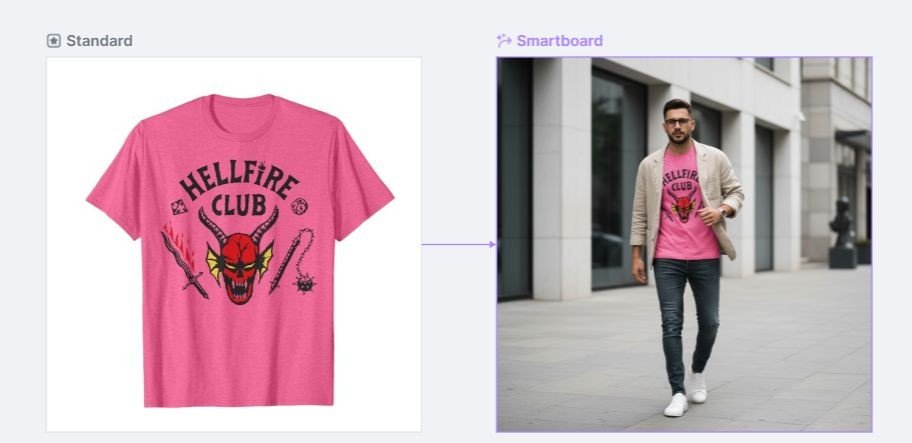
As you move through this Kittl tutorial, you’ll learn how to create different styles of images using just a single product reference.
Kittle Tutorial Step 1: Choose the Product You’re Promoting
Start with one clear product from your affiliate program.
For example:
Download a clean reference image of the product. This image will guide the AI.
Kittl Tutorial Step 2: Upload the Reference Image into Kittl
Inside Kittl, upload the product image as your reference.
Before Kittl creates your lifestyle image, it needs to understand what you’re working with — and that’s where the reference image comes in.
This can be your Amazon product photo, a manufacturer image, a screenshot from your affiliate link, or any picture that clearly shows the product.
This helps the AI understand:
You’re not copying the image — you’re using it as input.
Here’s how to get everything set up:
Create your free Kittl account
Go to Kittl.com and sign up for a free account.
You’ll get instant access to the Kittl Flows AI generator — no credit card required.
(It’s super beginner-friendly, which is why I recommend it.)
Open the Kittl Flow editor
Once you’re logged in:
This is the workspace where you’ll upload your reference image, paste your prompt, and generate your lifestyle scenes.
Upload your product image
A new window opens and asks you to choose your art board style. Click “Social – Pinterest Pin/Ad.”
In the left menu, click “Uploads” to Upload a Reference Image, and choose your product photo.
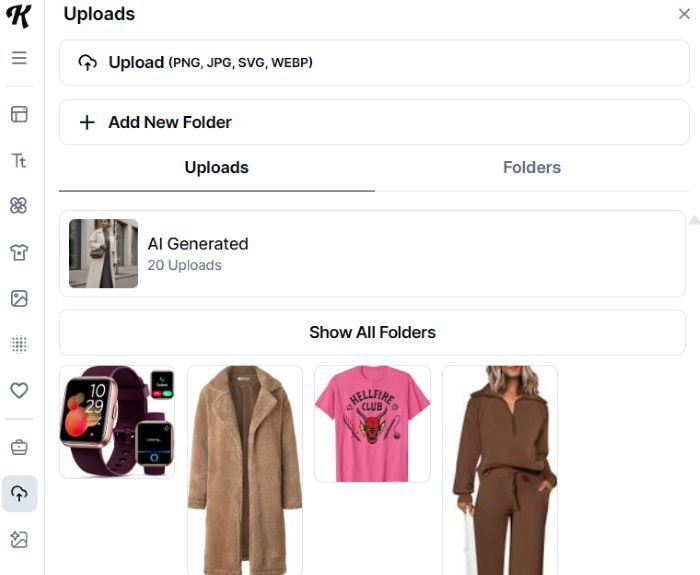
The reference image helps Kittl understand:
You’re not copying the original or reusing restricted images — you’re simply giving the AI context.
This is what allows Kittl to generate brand-new lifestyle scenes that stay true to the product.
Kittle Tutorial Step 3: Paste your prompt (your “scene description”)
Now comes the fun part.
You can ask Kittl to generate:
Examples:
Lifestyle-style visuals perform especially well because they help people imagine owning the product.
This Kittl tutorial shows you why the Smartboard feature is perfect for Pinterest pin layouts.
First, you’ll need to create a Smartboard. At the top of Kittl Flow, click on “Pinterest Pin/Ad – Smartboard.” This instantly generates a Smartboard layout for you, perfectly sized for Pinterest.
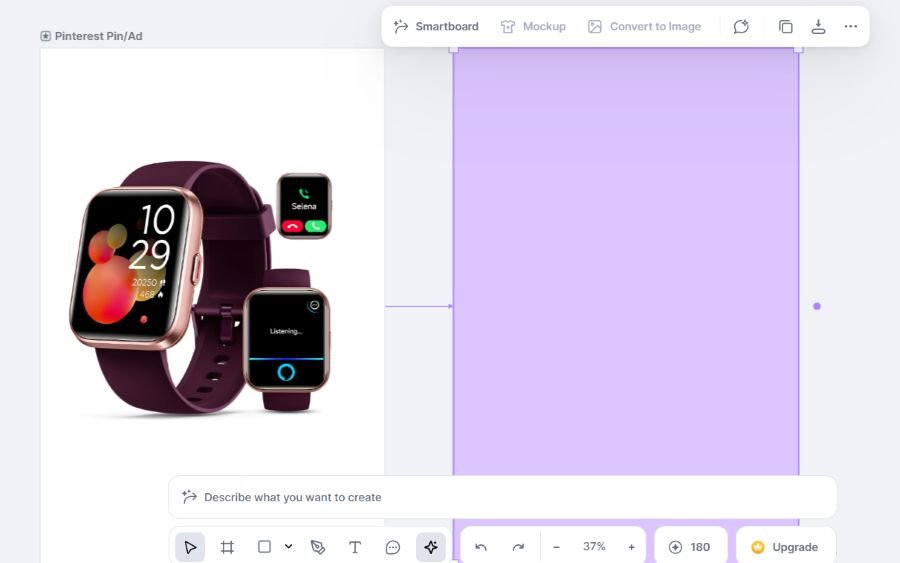
Next, Kittl will ask you to describe the variation you want to create from your reference image. This is where your prompt comes in.
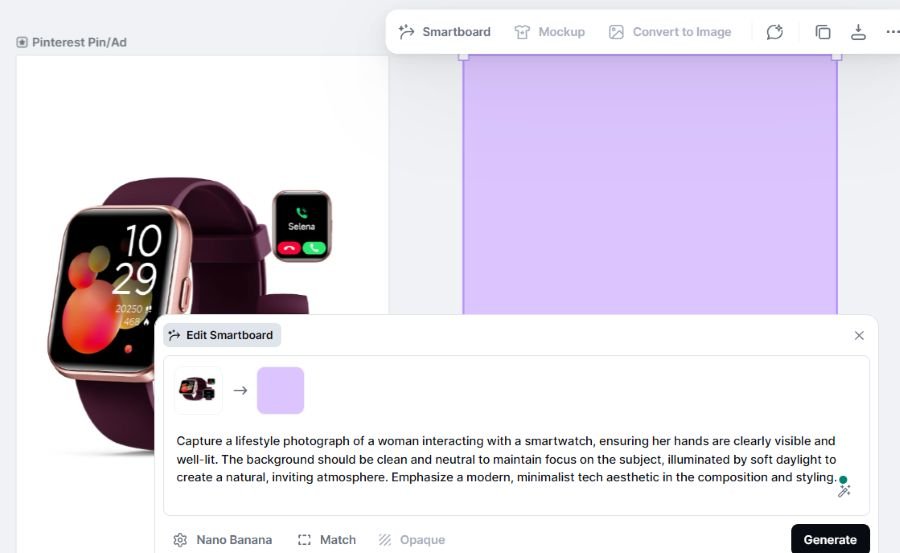
You can type your own description, or simply paste one of the prompts from the Kittl Flows Prompt Library—depending on the style, scene, or vibe you want for your pin.
The reference image + the prompt work together to create your final look.
Generate your new lifestyle image
Click Create and wait a few seconds.
Kittl will produce a brand-new, completely original lifestyle scene featuring your product.
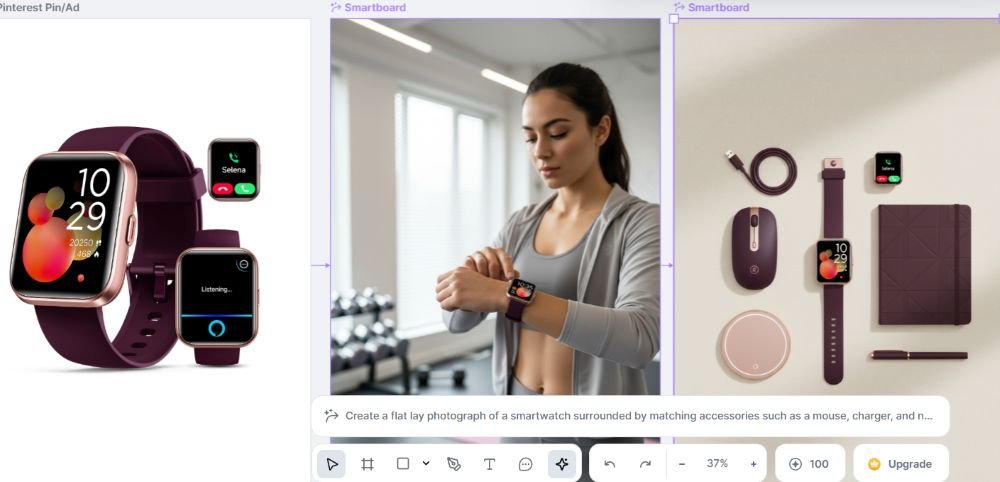
If you love it → download.
If you want tweaks → regenerate or change your prompt.
It’s fast, fun, and surprisingly accurate.
Kittle Tutorial Step 4: Turn Images into Scroll-Stopping Pinterest Pins
Once you have your AI-generated image, design your pin directly in Kittl.
Best practices:
Examples of effective pin text:
Pinterest favors clarity over creativity.
Add your text inside Kittl
One of the best parts?
You can design your entire Pinterest pin right inside Kittl — no switching tools, no extra uploads.
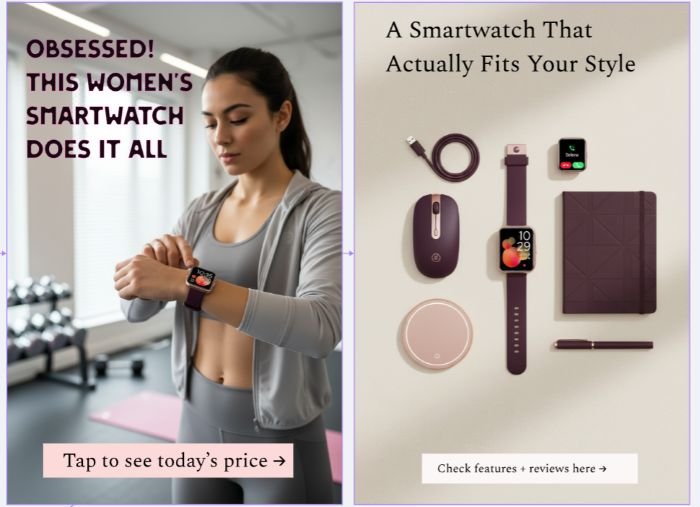
You can:
Kittl works a lot like Canva, but with stronger AI support — which makes this workflow so easy for affiliate marketers.
Kittle Tutorial Step 5: Create Multiple Pin Designs (Fast)
One of the biggest advantages of AI design is speed.
For one affiliate product, you can:
This increases your chances of Pinterest picking up one of your pins and pushing it in search.
✨ If you’re deciding whether to use these prompts inside Kittl or switch between platforms, my detailed Kittl vs Canva comparison breaks down which tool works best for each type of design
Why AI-Designed Pins Convert Better
AI-designed affiliate pins:
And because they look professional, people are more likely to trust the click. And this Kittl tutorial proves how easy and fast you can create lifestyle-style pins with the right prompt.
💰Ready to start earning from your pins? Check out my guide to Pinterest affiliate marketing.
Beginner Win: No Design Skills Required
Here’s what you don’t need:
All you need is:
Kittl handles the visuals.
Pinterest handles the traffic.
Your affiliate program handles the tracking.
Common Mistakes to Avoid
Pinterest rewards variation and relevance, not perfection.
Final Thoughts
At the end of this Kittl tutorial, you’ve learned how to create multiple image variations for your affiliate pins in just a few minutes.
Creating affiliate pins no longer has to be the hardest part of Pinterest marketing.
With AI tools like Kittl, beginners can create premium, click-worthy affiliate pins that compete with big accounts — without overwhelm.
If you can describe what your buyer wants, AI can handle the design.
And that’s a huge win 🦊
Want help creating Pinterest-ready affiliate pins that actually get clicks?
👉 Check out my Kittle AI Prompt Library to save time, design faster, and start pinning with confidence. – The Kittl Flows AI Prompt Library gives you 80 done-for-you prompts designed to turn a simple reference image into beautiful, Pinterest-perfect lifestyle scenes — showing your affiliate products in real-life situations without breaking image usage rules.