Ebook Cover Design in 6 Steps with Canva: Create a Stunning Cover Fast
You know that moment when you open Canva full of excitement… then immediately spiral into “Why does my ebook cover look like it needs a makeover?” Been there. The good news? Creating a polished, professional-looking ebook cover design doesn’t require fancy design skills—just a clear, beginner-friendly workflow that actually makes sense.
This post may contain affiliate links. This means I get a commission if you purchase through my links at no extra cost. Read the full disclosure here.
In this guide, I’ll walk you through the exact steps I teach new creators: from inspiration and layout selection to fonts, color palettes, and exporting the final file. By the end, you’ll feel confident (and honestly, a little proud) of the gorgeous cover you’ve created. Ready? Let’s dive in, friend.
Step 1: Start With Research That Actually Helps You
Before you rush into designing, take a breath and look at what’s already working in your niche.
Genre cues matter—romance readers love soft pastels and illustrated characters, while thrillers lean into dark, dramatic tones. Spend a few minutes scrolling through bestseller lists or Pinterest, and you’ll start spotting patterns quickly.
Pick one clear focal point for your ebook cover design. Whether it’s an image, a bold title, or a striking color block… clarity always beats clutter.
What to Do
Pro Tip: Save 5–10 covers you love and use them as a visual mood board.
Learn the easy 7-step Canva workflow I use for every ebook.
Step 2: Set Up Your Workspace the Smart Way
Yes, Photoshop is great—but you absolutely don’t need it. Canva gives beginners everything they need without the tech headache.
Choose your size (5×8 inches works for most ebooks, but A4 or Letter are fine if it’s a PDF-style resource).
From here, you can start with a blank page or browse templates for inspiration (search for ebook cover page). Designing from scratch gives you a more original final result.
Templates vs. Blank Canvas
Pro Tip: Create a “brand kit” inside Canva so your colors and fonts are ready to go.
Step 3: Build Your Visual Foundation
Now, let’s make your ebook cover page look intentional. Start with a strong background—solid color, soft gradient, or a high-quality photo. Canva’s Frames are perfect if you want a creative shape (like an arch or circle) for your imagery.
Use background remover, transparency toggles, and the Layer panel to create depth and focus. Free stock photos from places like Unsplash are great if you’re not using Pro images.
Stick to a tight color palette—matching tones from your image is an easy way to keep things cohesive.
Your Background Options
Design Actions
Pro Tip: Lower the background photo opacity to 70–85% for an elegant, editorial aesthetic.
Step 4: Nail Your Typography (Seriously… It Matters)
Fonts can make your ebook cover design look professional or painfully homemade.
Keep it simple with two fonts max:

Read more: Find the perfect font pairing for your ebook cover.
Do a readability check. Your title must be readable as a small thumbnail. High contrast is your best friend here. Use subtle text effects like drop shadows or the “Lift” feature—skip the heavy outlines.
Pro Tip: Add +1 to +3 letter spacing to give your title a luxe, polished feel.
Step 5: Refine Like a Designer
Once your layout is ready, step away for a moment. Fresh eyes catch everything.
Add intentional white space; this will make your cover feel airy and uncluttered. Lock layers you don’t want to move (trust me, this saves your sanity).
Test your options with your audience—run a quick poll, ask your readers, or use A/B tools like Pikfu to see which design wins attention. When in doubt, simplify. Clean always beats complicated.
Read also: Match colors like a pro with Canva’s hidden tool.
Step 6: Export a Crisp, High-Quality Final File
When you’re ready, export your cover as a high-quality PNG for digital use.
Double-check:
Export Settings
This is the version that represents your brand everywhere—make it count.
Pro Tip: Save one version in a 2:3 ratio for uploads and one square version for sharing on social media.
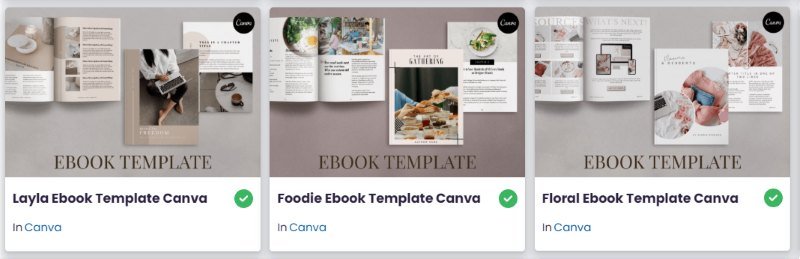
One of my favorite places to find beautiful elements for my ebook covers is Creative Fabrica. Their fonts, graphics, and design assets instantly elevate any layout and make the whole ebook cover design process so much easier. I use it all the time when I want a polished, professional look for my ebook cover design—without spending hours creating everything from scratch.
You may also want to read this guide if you’re serious about selling your ebook
Quick Recap
Conclusion
Designing a scroll-stopping ebook cover page doesn’t have to be stressful or reserved for “real designers.” With the right steps, a dash of creativity, and a simple workflow, you can create something polished, professional, and totally you. And honestly? You’re already miles ahead just by taking the time to learn the foundations.
Now that you’ve got the essentials down—research, colors, fonts, images, and that crisp final export—it’s time to level up even further. Your layout is where the magic really clicks into place. The structure you choose can make your cover look effortlessly cohesive… or quietly chaotic.
Get access to the Canva Creator Vault.
Join our mailing list and get instant access to the Canva Creator Vault — a growing library of FREE templates, cheatsheets, font pairings, planners, and more!